Public beta · macOS 14 or later
Back up your Mac to storage you own.
A free menu bar app that encrypts your folders on your Mac, then backs them up on a schedule to your own drive, bucket or server.
- Encrypted on your MacOnly you hold the key.
- Stored where you chooseNo Keelhaven server in the path.
- Quiet until it mattersIt speaks up only when something needs you.
01 · Where your files go
From your Mac to your storage. Nowhere else.
Your Mac
The folders you pick
- Documents
- Photos
- Projects
…any folder you choose

Keelhaven
in your menu bar
- Encrypts with a password kept in your Keychain
- Stores only what changed since last time
- Runs hourly, daily or weekly, at your time
- Verifies the repository, weekly by default
Storage you own
Wherever you trust
- External or network drive
- S3-compatible bucketAWS · B2 · Wasabi · R2 · MinIO
- SFTP to a server or NAS
- restic REST server
Not in the path:a Keelhaven serveran accounttelemetry
02 · How it works
Three decisions, then silence.
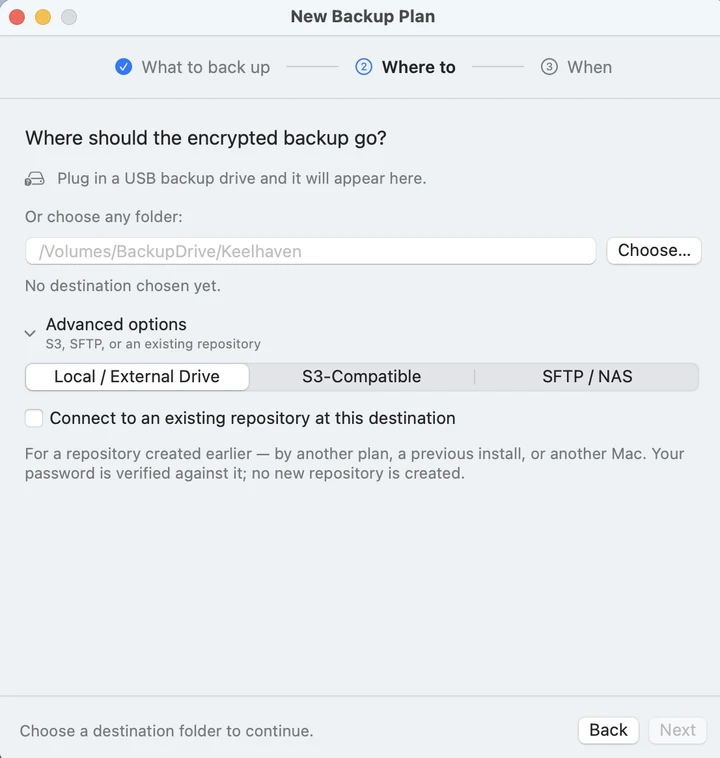
1 · Make a plan
Folders, destination, schedule.
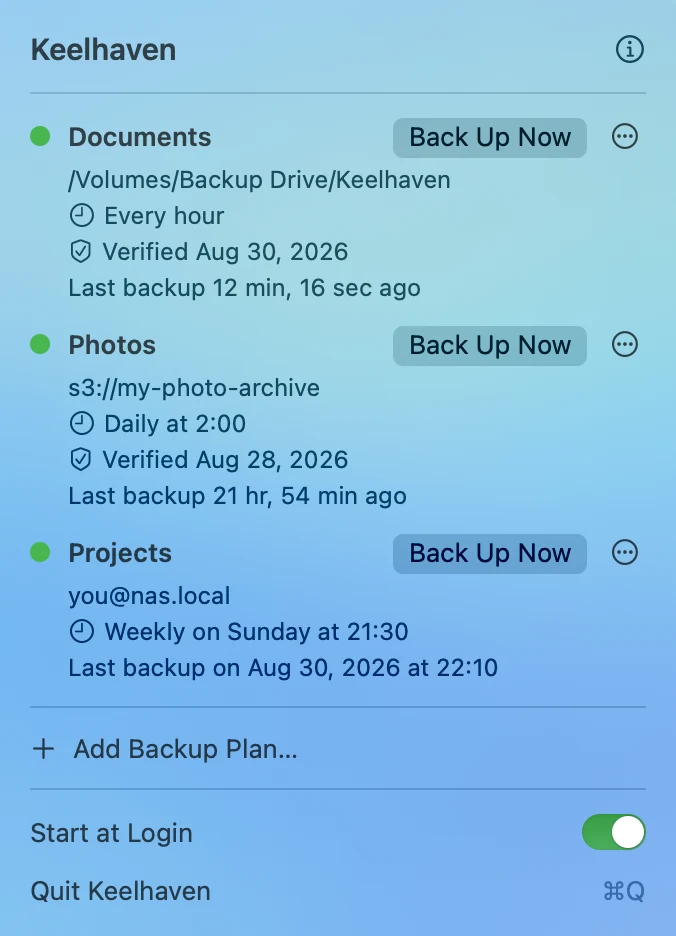
2 · Let it run
A green dot means the last backup worked.
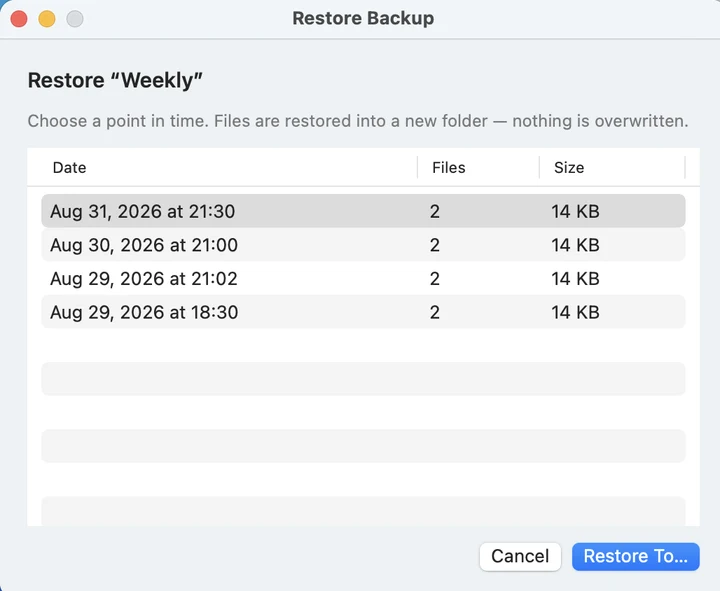
3 · Restore any point in time
Into a new folder. Nothing is overwritten.
03 · No lock-in
Your backups outlive the app.
Every plan is a standard restic repository. Restore it on any Mac or Linux machine, with or without Keelhaven.
$ restic -r sftp:you@nas.local:/backups \
    restore latest --target ~/Restored
04 · Price
Free. That's the whole model.
Open source under the GPLv3. No account, no subscription, no telemetry.
Nice scope — restic plus a menu bar UI is exactly the missing piece, and keeping the repo format standard means people aren't locked into your app. The no-account, no-telemetry stance will do a lot of the selling for you.
05 · Questions
Straight answers
Does this replace Time Machine?
No — run both. Time Machine is excellent at putting a whole Mac back the way it was, from a drive on your desk. Keelhaven is for the second copy: the folders you can't lose, encrypted, somewhere that isn't your desk.
macOS says it can't verify Keelhaven. Is something wrong?
Nothing is wrong — beta builds aren't notarised with Apple yet, so macOS shows its standard warning for any app it can't verify online. Allow it once and it never asks again for that version:
- macOS 15 (Sequoia): double-click Keelhaven once and dismiss the warning, then open System Settings › Privacy & Security, scroll down, and click Open Anyway.
- macOS 14 (Sonoma): right-click Keelhaven in Applications, choose Open, then click Open again.
- Prefer the Terminal?
xattr -d com.apple.quarantine /Applications/Keelhaven.appclears the flag and skips the dialog entirely.
What happens if I forget the repository password?
The backup is unrecoverable, by design — repositories are encrypted end to end, and nobody, not us and not your storage provider, holds a spare key. Keelhaven keeps the password in your macOS Keychain and can copy it back out after a Touch ID check; put it in your password manager too.
More questions
How do I get my files back?
The plan's ⋯ menu has Restore… — it lists every snapshot that plan has taken (date, number of files, size, newest first), and you pick the point in time you want and where to put it. It restores into a new folder named for the plan and the moment, so nothing you have now is overwritten and a restore can never cost you the version you're standing on.
It restores a whole snapshot rather than letting you open one up and pull a single file out — take what you need from the restored folder afterwards. Browsing inside a snapshot is on the list, not in the app yet.
None of it depends on Keelhaven being there: the repository is standard restic, so restic restore from any Mac or Linux box does the same job.
It's free — what's the catch?
There isn't one. Keelhaven's backup engine is restic — free, open source, and excellent — and Keelhaven adds everything a command-line tool deliberately leaves to you: a schedule that actually runs, passwords held in the macOS Keychain and never written to disk or logs, and a menu bar that stays quiet until something needs you. There are no servers to pay for and no company behind it, and the whole thing is open source — it doesn't need a business model to stay alive. If it earns a place on your Mac, telling a friend is all the support it needs.
Am I locked into Keelhaven?
No. Every plan writes an ordinary restic repository, so you can list, verify, and restore your backups with the open-source restic CLI on any Mac or Linux box — with or without Keelhaven installed. If Keelhaven disappears tomorrow, your backups don't.
Is Keelhaven open source?
Is my data readable by anyone else?
No. Backups are encrypted on your Mac before anything is uploaded, and the repository password is stored only in your macOS Keychain. There is no Keelhaven server, no account system, and no telemetry — the app has nowhere else to send anything.
Which destinations are supported?
An external or network drive mounted on your Mac, any S3-compatible bucket (AWS, Backblaze B2, Wasabi, Cloudflare R2, MinIO), SFTP to your own server or NAS, and a restic REST server you host yourself.
I back up to Backblaze B2. Why is deleting old backups not freeing any space?
Because B2 does not delete — it hides. Keelhaven reaches B2 through its S3-compatible API, and deleting an object over that API marks the old version hidden rather than removing it. Hidden versions still take up storage and still appear on your bill, and no amount of restic forget --prune can reach them: the deletion has already been issued, and it did what the API allows.
The fix is one setting on the bucket, not in Keelhaven. In your B2 bucket's lifecycle settings, choose Keep only the last version of the file. This is what restic's own documentation recommends for B2, and it describes what follows: the previous version of the file is "hidden" for one day and then deleted automatically by B2.
Expect the space to come back over the next day or two rather than straight away. B2 applies lifecycle rules on its own schedule, so a bucket that looks unchanged tomorrow morning is normal — not a sign the rule failed.
Do backups grow forever?
Only if you leave retention off — which is the default, because deleting your data is never something Keelhaven decides on its own. Every run adds a deduplicated snapshot, storing only what changed.
When a plan should stop growing, Edit Plan → Retention has three ways to stop it. A year of history and a month of history thin older snapshots down to daily, weekly and monthly keepers, so the further back you go the sparser it gets. Keep a set number of backups is blunter and easier to reason about: the last N runs survive and everything older goes, however recent it is — a burst of backups in one afternoon can push out the whole of last month, which is the trade you're making when you pick it.
Either way the space is reclaimed after a backup, at most once a week. The repository stays standard restic throughout, so restic forget --prune with a policy of your own still works from any machine.
A backup is eating my whole upload. Can I slow it down?
Yes. Edit Plan → Advanced has an upload limit in KiB/s: set it and restic never pushes harder than that, so a big first backup can't take your connection hostage while you're on a call. The same section can lower how many files are read at once — worth doing on an external hard disk, where reading several at a time only makes it seek more — and raise the pack size for cloud storage that charges per request. All three are empty by default and each one left empty stays exactly as restic ships it.
How do I know the backups are actually good?
A failed or incomplete run is never silent — errors from the engine surface immediately in the menu bar and as a notification. Keelhaven also verifies each plan's repository with restic's own integrity check on a schedule — weekly by default, adjustable per plan — and a quiet "Verified" line in the plan row shows the last time it passed; only a problem speaks up. And restoring a file now and then remains the gold standard for any backup tool, ours included.
A backup failed saying some files could not be read. What do I do?
That is macOS protecting your files, not the backup engine misbehaving. Desktop, Documents, Downloads, iCloud Drive and parts of your Library are closed to every app until you allow it — and those are exactly the folders people put in their first backup plan. Keelhaven names the files it could not read instead of failing with a generic error, and the plan's row has a button that opens the right settings pane.
Fix it once: open System Settings › Privacy & Security › Full Disk Access and turn on Keelhaven — then quit and reopen Keelhaven before running the backup again, because macOS only hands the new permission to a freshly launched process. (System Settings offers the same "Quit & Reopen" button for this reason.)
If it comes back after an update, this is why. macOS ties this permission to the exact build it was granted for. Keelhaven's beta builds aren't Developer ID-signed yet, so every new version is a different app as far as that list is concerned, and the permission has to be given again: remove Keelhaven with the − button, add it back from Applications, then quit and reopen. Signing and notarisation remove this step; until then, a release can bring it back.
One thing worth knowing: the run may have stored a snapshot anyway, holding everything it could read — restic writes what it can and then reports the rest. Those snapshots are marked incomplete in the restore window, so you are never shown a file as backed up when it isn't.
This is also why Keelhaven is an app rather than a script. Granting this permission to a shell script means granting it to your terminal, which is a much bigger door than one app.
Do I need to install anything else?
No. Everything Keelhaven needs ships inside the app bundle, including its backup engine — no separate install step, no Homebrew requirement, nothing to keep up to date.
Can I install it from the terminal?
Two ways, both installing the same DMG the download button serves. With Homebrew, brew install --cask shenxianpeng/tap/keelhaven — and brew upgrade picks up new releases. Without it, curl -fsSL https://keelhaven.app/install.sh | bash downloads the latest release and copies it into Applications; the script is a short, readable page of shell if you'd rather check it first.
Why isn't it on the Mac App Store?
App Store apps must run in the sandbox, and the backup engine needs to read the folders you point it at and open network and SSH connections. Running outside the sandbox is also what lets you grant it Full Disk Access — the permission macOS demands before any app may read Desktop, Documents or Downloads. Keelhaven ships with the hardened runtime enabled, just not through the store — and while in beta, without Apple notarisation, which is why the first launch asks for one approval.

Set it up once. Then forget it.
Download for MacmacOS 14 or later · Apple silicon and Intel